There are three resource types that can only exist within a SPOC. These are:
The only tabs for these resource types are:
All other attributes of the resource (audience, notifications, etc.) will be contained within the SPOC resource in which this resource sits.
A PDF document resource type allows for easily uploading a PDF document which will then display within the SPOC display area.
To create a PDF resource, go to Resources > Maintain Learning Resources, in the Navigation Bar of the Administrator's Console. Click the New button in the toolbar, and select PDF document in the Type of Resource drop-down.
On the Overview tab enter the resource title and a short description if desired. This will display to learners within the SPOC resource.
Enter a provider and select an online media type.
Optionally, enter text on the description tab. This text will only display to administrators.
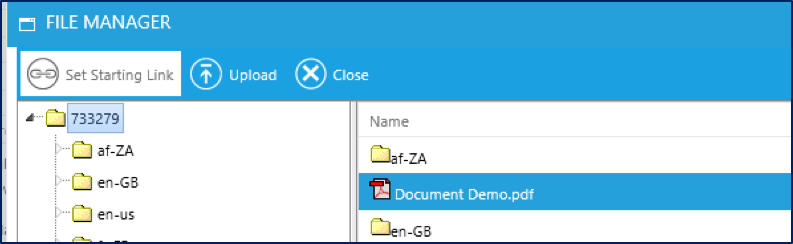
Click on the File Manager button in the top toolbar and upload the PDF document.
Once the file has been uploaded, highlight the document and click the Set Starting Link button in the File Manager toolbar.
You will return to the New Resource window. Go to the Online tab.
The starting link should display in the Location field.
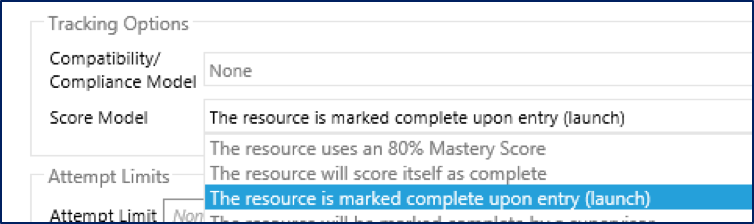
In the Online tab, change the Score model to The resource is marked complete upon entry (launch).
Once you are done, click Save and Close in the toolbar to exit the resource.
A Rich Text resource allows the administrator to enter the text of the resource on the Description tab of the resource. The contents of the Description tab will appear within the SPOC resource.
To create a Rich Text resource, go to Resources > Maintain Learning Resources, in the Navigation Bar of the Administrator's Console. Click the New button in the toolbar, and select Rich Text Document in the Type of Resource drop-down.
On the Overview tab enter the resource title and a short description if desired. This will display to learners within the SPOC resource.
Enter a provider and select an online media type.
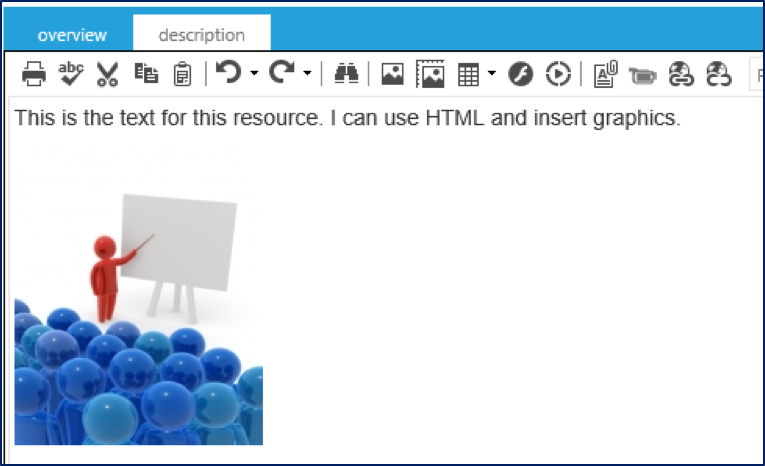
On the Description tab enter the course contents. The contents of this tab will display within the SPOC resource as the actual resource. The Description tab contains the full Rich Text editor, which means that pictures and videos can be embedded. The HTML tab can also be used to support robust formatting.
Once you are done, click Save and Close in the toolbar to exit the resource.
An embedded document resource type allows the admin to share material from sites like YouTube, Vimeo, Office 365, and others. Basic hyperlinks (to sites the user has access) can also be used.
To create an Embedded Document resource, go to Resources > Maintain Learning Resources, in the administrative menu. Click the New button, in the toolbar, and select Embedded Document in the Type of Resource drop-down.
On the Overview tab enter the resource title and a short description if desired. This will display to learners within the SPOC resource.
Enter a provider and select an online media type.
Go to the Online Tab. In the Location box, insert the link of the document or video that the learner should view.
In the Online tab, change the Score model to The resource is marked complete upon entry (launch).
Once you are done, click Save and Close in the toolbar to exit the resource.
Manage Announcements and Discussion Tabs